
Asus Router App
Asus Router App helps users to configure and manage the Asus Router from the mobile device itself. Users can download the Asus Router App from Google Play Store or Apple App Store.
Asus Router app helps users to configure Asus Router from Mobile device itself, moreover users can manage Asus Router settings remotely via the Asus Router App. Router Settings like Wireless Management, Parental Controls, VPN Setup, Firmware Update,Manage and Check Connected Devices and many more Router features can be managed via Asus Router mobile app itself.
Users can manage Ai Protection by Trendmicro settings via Asus Router App, Ai Protection by Trendmicro blocks viruses,malwares before they enter your Network or Devices.Latest Asus Router App has enhanced features which helps in selecting connection type on WAN, clear guidance on when to connect node.
Asus Router setup in case of Windows PC or Mac Operating device can be done via browser method. To configure or manage Asus Router via Windows or Mac Operating system device, use web address http://asusrouter.com or default IP address of Asus Router 192.168.50.1
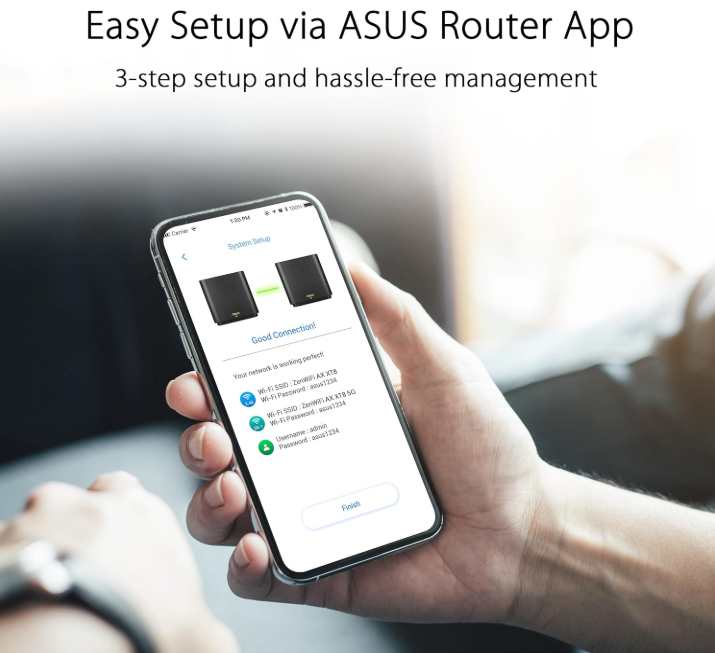
Asus Router Setup using Asus Router App
Configuration of the Asus Router can be done via Asus Router App via mobile app itself. Users can follow these steps for Connecting Asus Router using mobile app
- Power ON Asus Wi-Fi Router, Connect power adapter to Asus Router, and connect External antennas if any.
- Disconnect Old Wi-Fi Router/Gateway. Connect Ethernet from Internet Provider Modem to WAN Slot of Asus Wi-Fi Router.
- Reboot Internet Provider Modem and Asus Router, wait for the lights to be stable on Modem and Asus Router.
- Download the Asus Router App on your mobile device. Users can download the Asus Router app from Google Play store for Android devices and Apple App store in case of iOS devices.
- Connect your mobile device with Asus Wi-Fi Router SSID Network.
- Launch Asus Router app, Select Asus Router Model Series and then click on next Option.
- Asus Router Quick interface screen will appear, Create a new Network option will appear, click on Next option.
- Create a new SSID Network name for 2.4Ghz and 5Ghz Network, and then create a secure wireless password, minimum 8 characters are required.
- Router admin username and password screen will appear, create a new admin username and admin password, then click on next option.
- Router will detect Internet Connection Type, that is Static,Dynamic,PPPoE. Select Internet connection type as per your Internet Provider and then click Apply Option.
- Asus Router will reboot once to apply changes, reconnect your Smartphone with New SSID Network name and Wireless password.
- Network Optimization screen will appear on Asus Router App.
Users can Update Asus Router Firmware using Asus Router App.
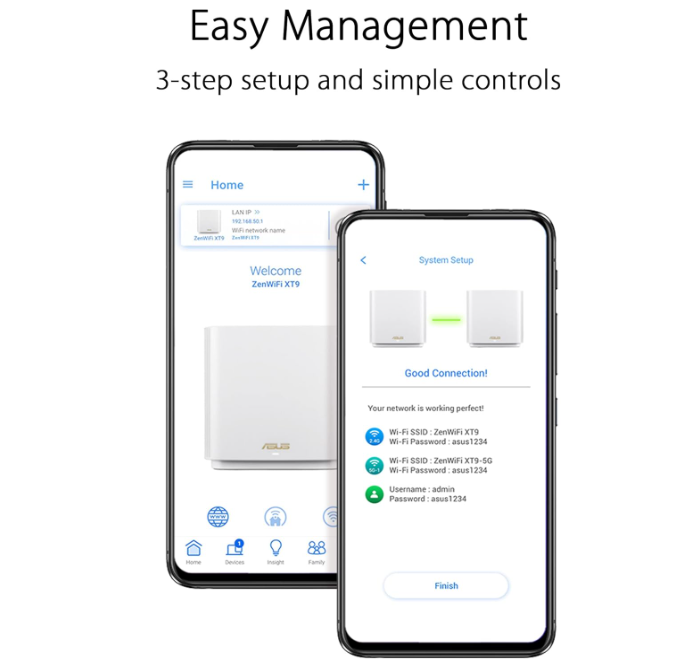
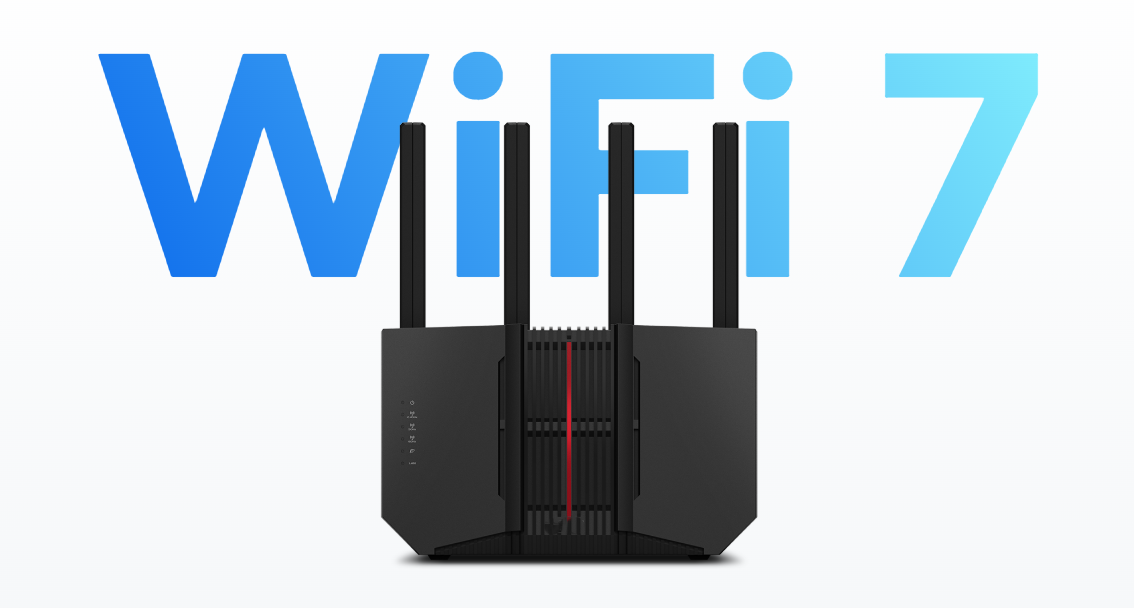
Asus Router Firmware Update Process
Asus Router Firmware update can be done via the Asus Router App or via web browser method using the IP address of the Asus Router http://192.168.1.50 or http://asusrouter.com address. To update Asus or Mesh Nodes Firmware via Asus Router app, users can follow below mentioned steps:
- Connect your Smartphone with Asus Wi-Fi Network Name SSID, Navigate to Settings and Wi-Fi to connect your smartphone to Asus Router Network.
- Launch Asus Router App on your mobile device, sign in with your username and password credentials.
- Navigate to Settings option on Asus Router App.
- Select Firmware update Option.
- Asus Router App will check for any pending firmware update, Click on Update option if in case app detects new Firmware Update.
- Asus Router will reboot once the new Firmware update is applied to Asus Wireless Router.
NOTE: Make Sure Asus Router is powered ON while Firmware update process is in progress. Do not disconnect power adapter or decompress Reset on Asus Router, while Firmware update process is in progress.
Asus Router App Download
The Asus Wi-Fi Router App is basically available for mobile devices only. Users can download the Asus Router App on their iPhone or Android Device only. Asus Router App is not available for Windows PC/Laptop Platform. In case of Windows PC, users can access and manage Asus Router settings using web address http://asusrouter.com or default IP address of Asus Router http://192.168.50.1.
Asus Router App can be downloaded from Google Play Store in case of Android Devices or Apple App store in case of iOS Devices. Asus Router App can be downloaded on iPad or Android Tablets. In case you are using any Android device, Asus Router App is compatible with Android 9 or Above version, in case of Apple devices OS must be iOS 13 or above to make optimal use of the Asus Router App.
Asus Wi-Fi 7 Tech Router Setup
Asus Wi-Fi 6 and Wi-Fi 7 Router setup can be done easily via Asus Router App via iOS or Android mobile device. App based setup is recommended in case of Asus Wi-Fi 7 Technology Routers, Asus Router App helps in easy Router Installation, Wireless SSID Configuration, Automatically detects Internet Connection type, Firmware Update, Parental Controls and almost all Router features can be accessed via App itself from mobile device.
To Setup any Asus Wi-Fi 7 Router, Users can follow below mentioned steps:
- Unbox the Router and connect External Antennas if any, Disconnect the Old Wi-Fi Router.
- Connect Ethernet Cable from Internet Provider LAN Slot to WAN Internet port of new Asus Wireless Router.
- Plug in the Router power adapter and wait for the lights to turn Solid White/Blue.
- Download Asus Router App from Apple app Store in case of iOS devices or Google play store in case of Android devices.
- Connect your Mobile device with Asus Router Wireless Network. Default SSID Network name and Wi-Fi Password are mentioned on Asus Router label itself.
- Launch the Asus Router App, Select the Router Series you are trying to configure from the list.
- Asus Router app will detect automatically connection Type, Quick Setup Wizard screen will appear.
- Click on Create a new Network and then click on Next option.
- Create new Wi-Fi Network Name SSID and Wireless password for your Asus Router.
- Then create Admin credentials for Asus Router, Admin username and password credentials helps users to access Router settings in future via Web address method.
- Asus Router will reboot once to apply changes, reconnect your mobile device with new Network Name and Wi-Fi password.
- Network Optimization screen will appear, Update your Router firmware in case there is a pending firmware update for your Asus Wi-Fi Router.
For Advanced configuration, Users can access Asus Router web interface page using default IP address of Asus Router http://192.168.50.1 or http://asusrouter.com. In case of Old Asus Routers, users can use the web address http://router.asus.com.
Asus Router Firmware Update process via Web Browser
Asus Router firmware can be updated via web browser method also. Users need to connect their Laptop/PC with Asus Router Wired or Wirelessly. To update Asus Router Firmware via Web Browser users can follow below mentioned steps:
- Connect your PC/Laptop with Asus Network wired or wireless.
- Navigate to http://asusrouter.com or http://192.168.1.250 Asus Router Default IP address.
- Asus Router GUI screen will appear, Enter your Admin Username and password.
- Asus Router GUI screen will appear, Navigate to Administration Option.
- Under Administration, Select Firmware Update option.
- In case there is a pending firmware update,users will get update option.
- Router will reboot once to apply new firmware changes.
- It takes about 3-5 minutes to update Asus Router Firmware via Web address http://asusrouter.com.
Users can also check for the latest Asus Router Firmware update option on Asus Official website, Asus Router firmware can be upgraded by downloading the Firmware file from the Asus Download Centre.
Asus Router Admin Username and Password Reset
Asus Router default username and password are created while initial setup of Asus Router. In case users forget Asus Router Admin username and password, simply do a factory reset on Asus Router by decompressing the Reset Button or by using a paper pin for 10 seconds. Router settings will get reset to factory defaults, Router will reboot once. Wait for the lights to be stable Green or White depending on Model Number.
After Factory Resetting the Asus Router, Users can Reconfigure Asus Router via Asus Router App or via web address http://asusrouter.com or http://192.168.50.1 in case PC/laptop. Quick Setup screen will appear, Click on Create new Network, and configure Wireless Settings and Admin account new username and password for Asus Router.
Asus Router Setup in Repeater Mode
Asus Wireless Router can be configured in Repeater mode, Users can even use their old Asus Router as Repeater to eliminate dead Wi-Fi Zones at your location. To Configure Asus Router in Repeater Mode users can refer to below mentioned Steps:
- Reset the Asus Router to factory defaults using a paper pin or decompress Reset Button for 10 seconds.
- Asus Router lights will flash momentarily, Wait for the lights to Turn on Solid Green or White as per Model Number.
- Connect your device with Asus Wi-Fi Network Wired or Wireless.
- Launch a Browser and type http://asusrouter.com or http://192.168.50.1 in the address bar of your preferred browser.
- Asus Quick Setup Screen will appear, Select Setup Options, Click on on Advanced Settings Option.
- Operation Mode Screen will appear, Select Wireless Repeater Mode Option.
- Asus Router will scan for Wireless Access Points nearby.
- Select your main Host Router wireless SSID and type Wi-Fi Password of your main Router.
- Create New Network Name SSID and Wireless Password for Asus, Asus Router will reboot once to apply changes.